HOME SECURITY
How to Keep Your Smart Home and Network Secure?
Smart home technology is meant to make life easier and safer. From smart locks and...
Learn More

 November 3, 2025
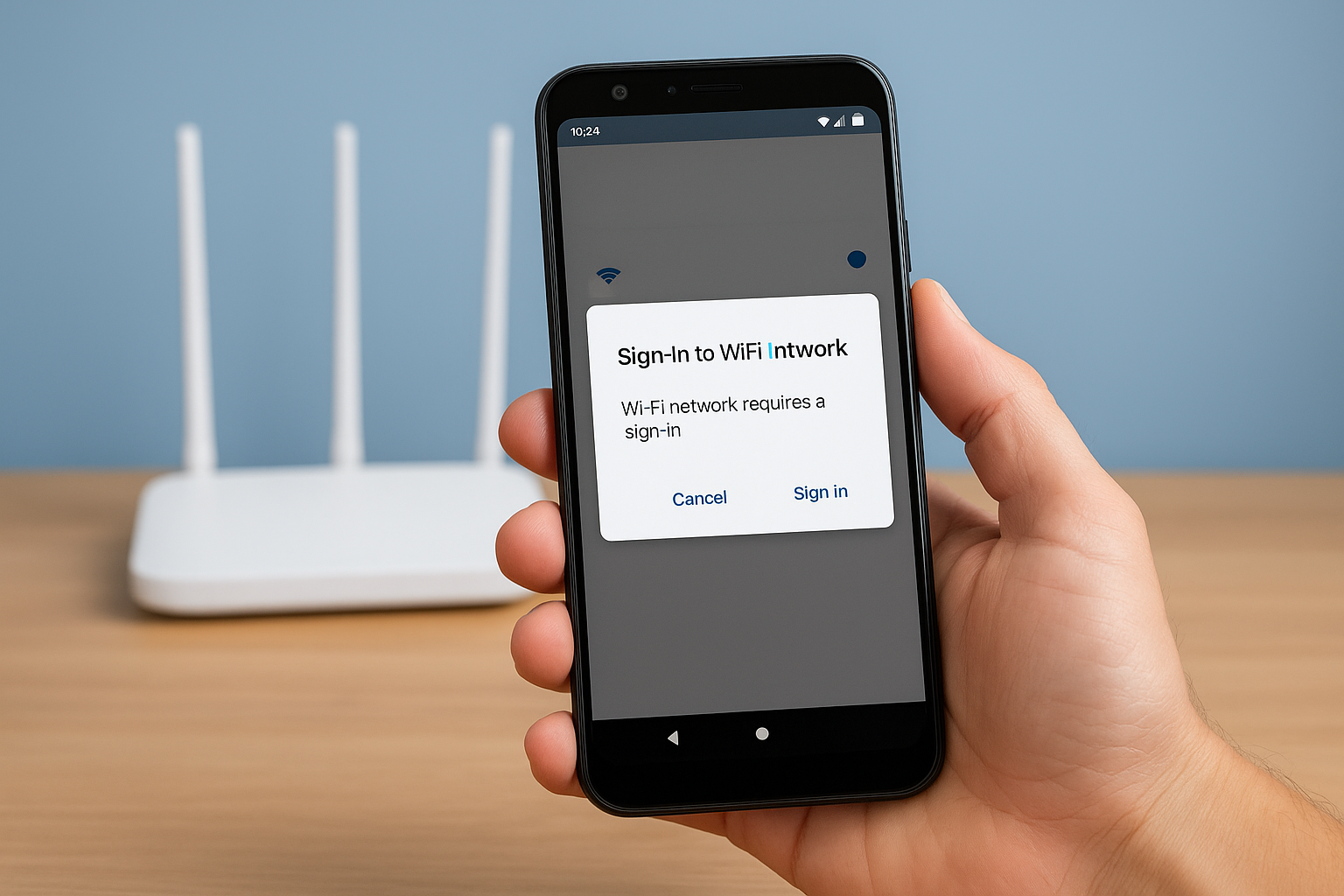
If you’ve ever connected to a WiFi network on your Android phone only to get that annoying “Sign-In to WiFi Network” prompt, you’re not alone. This issue is surprisingly common — even when you’ve already entered the password correctly or the internet seems fine.
In this guide, we’ll break down why this happens, how to fix it, and what to do if it keeps coming back. Whether it’s a router glitch, outdated software, or a quick setting you missed, these proven solutions will help you stay connected without interruptions.
When you connect your Android device to WiFi, the phone checks whether it can access the internet through that network. If it detects that it can’t — or that the network redirects you to a login page — it triggers the “Sign-In to WiFi Network” message.
This often happens in public networks like cafés, hotels, and airports that require login credentials or terms acceptance through a captive portal page. However, it can also appear on private home WiFi due to router issues or software glitches.
In most cases, the culprit is your router or modem. When your Android connects, it tries to confirm that the network actually provides internet access. If the router fails to route traffic properly, your phone assumes it’s a captive network and displays the sign-in message.
If your WiFi network is shared or public, try opening a browser like Chrome and visiting any site — this should trigger the actual login page.
Sometimes the prompt persists because of your phone’s network preferences. Android devices have a built-in setting that automatically checks if a WiFi network requires sign-in.
To turn it off:
This will stop Android from showing the pop-up automatically. However, remember that disabling this means you won’t get notified when a network truly needs login credentials (like at airports or cafés).
A surprisingly common cause of WiFi sign-in errors is outdated software. Android updates often fix bugs that affect network connectivity and WiFi authentication.
To check for updates:
After updating, restart your phone and reconnect to your WiFi. Software patches often include fixes for issues like authentication loops and network miscommunication between your device and router.
Related: Learn more about optimizing your connection in How to Boost Your Internet Speed at Home.
If your WiFi works fine but the “Sign-In to WiFi Network” alert won’t go away, you can simply disable that notification.
Here’s how:
This won’t fix the root issue, but it will stop Android from constantly reminding you about a non-existent sign-in requirement.
It may sound basic, but restarting your Android after modifying WiFi settings helps apply the changes properly. Many connectivity settings only take effect after a reboot.
If you recently:
then restart your phone. A simple reboot can clear cached network data and refresh your system connections.
Tip: If you’re still having trouble, try toggling Airplane Mode on and off to reset your wireless connections quickly.
If you’ve tried everything and your Android still keeps asking to sign in, your device’s network configuration may be corrupted.
To reset your network settings:
This will remove all saved WiFi networks, paired Bluetooth devices, and VPN settings — so make sure you have your passwords handy before doing this.
After resetting, reconnect to your WiFi network and test if the issue persists.
Sometimes, the problem lies with the internet provider or the network owner — not your phone. If other devices on the same WiFi also show limited access or ask for sign-in repeatedly, it’s best to:
If you’re using a shared business or public WiFi, the network might have a captive portal that automatically times out after a while, requiring you to log in again.
If you need to get online urgently while fixing WiFi issues, turn on mobile data temporarily. Go to Settings → Network & Internet → SIMs or Mobile Network, and toggle Mobile Data on.
You can also enable WiFi Assist or Smart Network Switch (on some Android versions) — this feature automatically switches to mobile data when WiFi connectivity drops.
The “Sign-In to WiFi Network” message is a common Android issue, but in most cases, it’s easy to fix. Start with router troubleshooting, check your software version, and adjust your WiFi preferences. If the pop-up persists, disabling the notification or resetting network settings usually does the trick.
By following these steps, you’ll avoid constant connection interruptions and enjoy a smoother, more reliable internet experience on your Android device.

Why Buying a Pre-Owned Phone Just Makes Sense Today
Jan 27, 2026

Bulk Phones: Smart Things to Know Before You Place a Large Order
Jan 26, 2026
How to Keep Your Smart Home and Network Secure?
Jan 26, 2026

How to Save Money on High-Quality Phones?
Jan 23, 2026

Best Comcast Internet Speeds for Smart Homes and 4K Streaming
Jan 22, 2026

26
Jan, 2026
HOME SECURITY
Smart home technology is meant to make life easier and safer. From smart locks and...

15
Jan, 2026
HOME SECURITY
Home security has become more personal than ever. Instead of relying solely on professional installers,...

8
Jan, 2026
HOME SECURITY
The market for selling security systems has never slowed down—it has simply evolved. Homes, retail...